Build a prototype with Claude Code that your whole team can edit
Written by Knut Melvær
You built a prototype. Maybe it’s a product catalog, a landing page, an internal tool. You prompted your way to something that looks real. The demo goes well. People are interested in pursuing the idea.
Then comes the next question: “Can the content team contribute to this?”
Yes, that would be awesome.
But you realize the problem. The product names are strings in a React component. The descriptions are hardcoded in a TypeScript file. Every piece of content lives in code in your project, which means every content change requires you. You can’t hand the prototype to a content writer and say “populate this with real product descriptions.” So the prototype sits in a folder, impressive but inert, while everyone waits for “real” development resources.
Adding a content backend changes this. Your content writer logs in, adds real products, and discovers that the categories don’t match the taxonomy they use. Your marketing lead puts in actual on-brand copy and realizes you need a short description field for product cards. These are the conversations that turn a prototype into a product, and they can’t happen when your content is locked in code files on your machine or trapped inside a vibe-coding tool like Lovable or v0.
What this guide covers
This guide walks you through adding a content backend to your prototype using Sanity for content operations and Claude Code (an AI coding tool from Anthropic) for agentic prototyping.
It also serves as a hands-on introduction to prototyping with Claude Code, and teaches you how to make your prototypes accessible to collaborators who want to help with content.
By the end, you’ll have an editing interface where your team can add and change content, a frontend that displays it, and a prototype that can evolve based on real feedback from real users.
The whole thing takes about an hour. If it takes longer, don’t feel bad. This guide is written for folks who don’t have a developer background, but are eager and curious to learn agentic engineering. You’ll need an open mind for picking up some technical things along the way. As capable as these AI tools are getting, working with agentic engineering is still a lot of trial and error.
This guide isn’t a list of prompts to copy and paste. It teaches you a way of working with AI coding tools that’s different from casual chat prompting.
You’ll learn:
- How to set up an AI coding tool for a specific domain. Connecting it to real infrastructure, giving it expert knowledge through skills, and providing project context it reads before every task.
- How to describe what you need in terms of editorial workflows, not technical specs, and get output that’s designed for your team.
- How to go from an empty project to a working, editable prototype that your team can populate, test, and iterate on together.
The example is a product catalog on Sanity, but the approach (set up your tools, describe the workflow, let AI handle the implementation) applies to any project and any AI coding tool. This is what takes you from asking ChatGPT to write code snippets to using AI to build real things at work.
So feel free to swap parts of this guide with whatever fits your project: a marketing site, an event page, a resource library, a help center. The process is about the same.
Before you start: prerequisites for building with Claude Code
Already used Claude Code a bit? Skip the install section below.
Completely new to Claude Code? Start here
Claude Code is Anthropic’s AI coding assistant. You tell it what you want in plain English, it does the work, and it shows you what it changed. You approve or redirect. There are two ways to use it:
- Desktop app. Mac and Windows. No terminal required for the chat itself. If the idea of a command line makes you uneasy, start here. Get it at claude.com/code.
- Terminal (CLI). What this guide assumes from here on, because some of the Sanity setup steps are easiest to run as terminal commands. Desktop users can still follow along, the prompts you give Claude are the same.
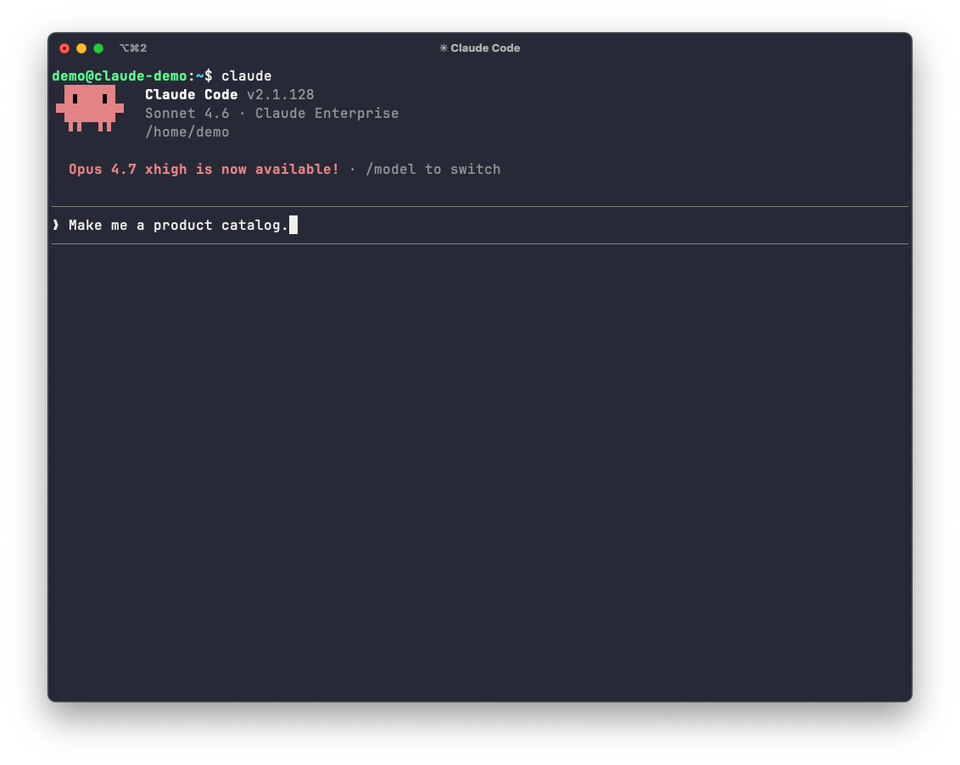
Go through Anthropic’s Claude Code quickstart (10 to 15 minutes) before continuing. You’re aiming to install it, log in, and see the welcome screen. Never used a terminal? Their terminal guide for new users covers that part. Come back here once you’re in.
What you’ll install
Four things. If you’ve used Claude Code or Cursor before, you probably have most of these already.
- Node.js. Download the LTS version from nodejs.org. Node.js runs JavaScript outside a browser. It powers the tools we’ll use throughout this guide.
- A terminal. On Mac: open Terminal (in Applications > Utilities). On Windows: open PowerShell (search for it in the Start menu). This is where you’ll type commands. If you’ve never used one, it looks like a text-only interface. You type a command, press Enter, it runs. To copy text, select it and use Cmd+C / Ctrl+C. To paste, Cmd+V / Ctrl+V. To stop a running program, press Ctrl+C (yes, the same combo, it does double duty).
- Claude Code. Get it at claude.com/code. The prompts in this guide also work in Cursor and other AI coding tools, but the install steps are written for Claude Code.
- A text editor. VS Code is a good default. Optional, since Claude Code can create and edit files for you, but a text editor is useful for reading what’s been generated.
About models, effort, and cost
A quick note before the work begins. Claude Code lets you pick which Claude model to use and how hard it thinks before acting. Both affect speed, quality, and cost.
Models. Type /model inside Claude Code to see your options and switch. As a rule of thumb:
- Claude Sonnet: a strong default for this guide. Fast, capable, reasonably priced.
- Claude Opus: better for complex schema design and reasoning, slower and more expensive.
- Claude Haiku: cheapest and fastest, underpowered for the schema work here.
Effort. Claude Code shows the current effort level in its status line (look for something like ● high · /effort). The default is fine for everything in this guide. You don’t need to adjust it.
Cost. Token costs accrue as you prompt. Run /cost inside Claude Code at any time to see usage so far. There’s a “what this cost” section at the end of the guide with real numbers from a run-through, so you’ll know what to expect.
If you want a hard ceiling, set a usage limit in your Anthropic console before you start.
Set up Claude Code for Sanity projects
This setup takes about 15 minutes across six small steps. The pacing:
- Steps 1 and 2 get you a folder and a running Claude Code session.
- Step 3 is your first useful prompt. About 10 minutes in, Claude Code writes its first file based on what you described in plain English. That’s your first milestone.
- Steps 4 to 6 wire Claude up to Sanity (access plus expertise) and scaffold the project.
Heads up about approval prompts. Claude Code pauses and asks permission before doing things like writing files, running terminal commands, or calling Sanity tools. The prompt looks something like this:Internal server error